
How to clean data in Excel, step by step
Clean Excel data on a copy and in order: spaces and hidden characters, capitals, columns, dates, blanks, then duplicates last. Check totals before and after.
Tools our VAs use for this


To clean data in Excel, copy the sheet first, then work in this order: remove extra spaces and hidden characters with TRIM and CLEAN, fix capitals with PROPER, split or join columns with Text to Columns or Flash Fill, convert text dates into real dates, deal with blanks, and remove duplicates last with Data > Remove Duplicates. Check the totals before and after. For a monthly job, use Power Query or hand the clean to a data entry virtual assistant who does it routinely.
On this page
What data cleaning means
Data cleaning means fixing the faults that break a spreadsheet, such as stray spaces, duplicate rows, dates stored as text, combined names and blank cells.
Stray spaces, duplicates, mixed formats and blanks
Most messy spreadsheets have the same handful of faults. Example: a contact list imported from a web form. The rows below are invented to show them.

| Problem in the cell | What it should be |
|---|---|
| " sarah JONES " | Sarah Jones |
| "Sarah Jones" on two rows | One row |
| "01/02/2025" stored as text, left-aligned | A real date |
| "Smith, John" in one column | First name and last name in two columns |
| A blank email cell | Filled from a reliable source, or flagged |
Each one breaks something: a lookup fails on a trailing space, a mail merge sends two letters, a date column will not sort. For the wider picture, our guide to what data cleansing is explains the process and why it matters. If the sheets keep coming back messy, admin support from a dedicated VA can take the routine clean.
Protecting the original data
Working on a copy
Right-click the sheet tab, choose Move or Copy, tick Create a copy and click OK. Work on the copy. Put cleaning formulas in a helper column beside the original, then use Copy and Paste Special > Values to keep the results.
Permanent deletion with Remove Duplicates
Microsoft's guidance on finding and removing duplicates warns that the duplicate data is permanently deleted, and advises copying the original data to another worksheet first.
Built-in Excel cleaning tools
Excel's built-in cleaning tools include Find and Replace for repeated variations, Text to Columns for splitting columns, Flash Fill for patterns and Remove Duplicates.
Find and Replace
Press Ctrl+H (or Home > Find & Select > Replace), type the text to find and its replacement, then click Replace All. Use it to fix repeated variations in one go, such as "Ltd." to "Ltd".
Text to Columns
Use it to split one column into several. Insert empty columns to the right first, so nothing is overwritten. Select the column, go to Data > Text to Columns, choose Delimited and select Next, tick the delimiter (such as Comma or Space), select Next, then select Finish.
Flash Fill
According to Microsoft's guide to using Flash Fill, Flash Fill automatically fills your data when it senses a pattern, for example to split first and last names out of one column. Type the result you want for the first row in the next column, then select the cell below and choose Data > Flash Fill (Ctrl+E on Windows). Check the results, as unusual rows can come out wrong.
Remove Duplicates
Click inside your data, go to Data > Remove Duplicates, and under Columns choose which columns define a duplicate. Tick only Email, for example, to treat two rows with the same email address as the same person. To review duplicates before deleting anything, select the column and use Home > Conditional Formatting > Highlight Cells Rules > Duplicate Values instead.
TRIM, CLEAN, PROPER and SUBSTITUTE functions
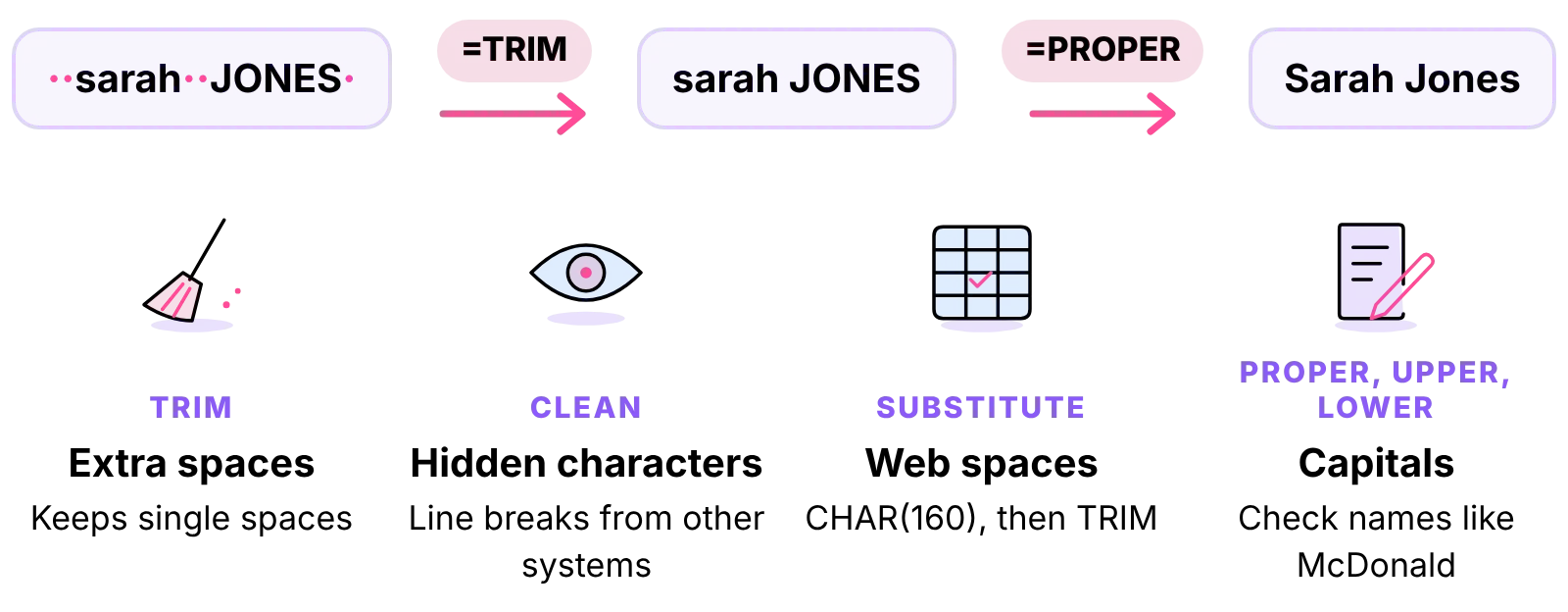
In Excel, TRIM removes extra spaces, CLEAN removes nonprinting characters, PROPER capitalises each word and SUBSTITUTE replaces characters the others miss, such as the non-breaking space.
Removing extra spaces with TRIM
In a helper column, type =TRIM(A2) and fill it down. Microsoft's page on the TRIM function says it removes all spaces from text except single spaces between words, so leading, trailing and doubled spaces disappear.
Removing nonprinting characters with CLEAN
Data copied from other systems often carries hidden characters, such as line breaks. Type =CLEAN(A2) to remove them. Microsoft's page on the CLEAN function says it removes the first 32 nonprinting characters in the 7-bit ASCII code (values 0 to 31). Combine the two as =TRIM(CLEAN(A2)) to fix both problems in one column.
What TRIM and CLEAN do not remove
TRIM is designed for the standard space character (ASCII value 32), so it does not remove the non-breaking space that often arrives with text copied from web pages. Replace it first, then trim: =TRIM(SUBSTITUTE(A2,CHAR(160)," ")). CLEAN, by Microsoft's own description, does not remove some additional nonprinting characters (values 127, 129, 141, 143, 144 and 157) on its own; use SUBSTITUTE with the relevant CHAR value for those.
Fixing capitals with PROPER, UPPER and LOWER
=PROPER(A2) capitalises the first letter of each word, =UPPER(A2) suits postcodes and =LOWER(A2) suits email addresses. PROPER turns "McDonald" into "Mcdonald", so check such names by hand.
Fixing dates, blanks and mixed formats
Dates stored as text
A date stored as text usually sits on the left of the cell by default, and =ISTEXT(A2) returns TRUE. To convert a column, select it, go to Data > Text to Columns, click Next to the last screen, under Column data format choose Date and the date order your data uses (day, month, year for UK dates), then Finish. For single cells, =DATEVALUE(A2) returns a date serial number to format as a date. Watch for dates from US-style systems, where day and month are reversed.
Missing values
To find every blank, select the range and use Home > Find & Select > Go To Special > Blanks. =COUNTBLANK(B2:B500) counts them. Fill gaps only from a reliable source and mark the rest "To check". Never guess a value.
Addresses and names
Split full names with Flash Fill or Text to Columns, then trim and fix capitals. Put postcodes into capitals with UPPER. To flag likely duplicates that differ only slightly, add a helper column with =COUNTIF($C$2:$C$500,C2)>1 against a cleaned email or postcode column, filter for TRUE and review those rows.
Automating data cleaning with Power Query
Power Query automates data cleaning by recording each step you apply, such as trimming or splitting a column, and replaying the steps when you refresh with a new file.

Excel versions with Power Query
Microsoft's Power Query in Excel page says Power Query is available in Excel for Windows, Excel for Mac and Excel for the web, and that on Windows it needs .NET Framework 4.7.2 or later. Availability can vary by version and licence, so check your own copy by looking for Get Data on the Data tab.
Repeating a monthly clean
Power Query records each cleaning step you apply, such as trimming or splitting a column, and replays them when you refresh. If you get the same export every month, build the steps once, then refresh with the new file.
Data cleaning checklist
Word checklist of the ten data cleaning steps, with the Excel formula or menu path for each (.docx, Word, 38 KB)
Order of steps
Copy this into the first tab of your workbook:
- Copy the sheet and work on the copy.
- Count the rows and note any totals.
- Remove spaces and hidden characters: =TRIM(CLEAN(A2)), plus SUBSTITUTE for non-breaking spaces.
- Fix capitals with PROPER, UPPER or LOWER.
- Split or join columns with Text to Columns or Flash Fill.
- Convert text dates into real dates.
- Find blanks with Go To Special, fill from a reliable source or flag them.
- Highlight duplicates, review them, then use Remove Duplicates.
- Paste helper columns as values and delete the old columns.
- Check the result.
Checking the result
Recount the rows: the difference should equal the duplicates removed. Sort each column both ways to bring odd values to the top and bottom, filter for blanks once more, and test the sheet where it will be used. The same checklist habit works for email, as inbox zero shows.
Limits of Excel
Large data sets, Python and R
Very large sheets slow down and errors get harder to spot. Load them through Power Query, or clean the data in a database or your CRM. Python and R suit people who already code; for most small businesses, Power Query or a person with a checklist is the better route.
Outsourcing data cleaning to a virtual assistant
Staffing and location
If the clean comes round every week, it may be better handed over. Ant Assist provides a dedicated virtual assistant, never shared, working full time from our own managed office in Cairo, recruited, managed and supervised there and UK-managed. Your VA works through your checklist during UK business hours, 9am to 5pm Monday to Friday, from the £5 per hour introductory rate; the calculator shows the cost for your hours. See whether a VA can help with research and data entry for the short answer. If you are costing a hire, executive assistant salary UK sets out typical pay. If you decide to hand the clean over, how to hire a VA for admin sets out the steps. Regular cleans like this are typical work for a virtual admin assistant.
Security and data access
We work under NDAs and data-processing agreements, share access through password managers and keep every login revocable by you.



Questions about cleaning spreadsheets
Didn't find your answer? Browse more common questions in the Help Center.
Clean spreadsheets, every week.
A dedicated data entry VA, from £5 per hour. Book a call.