
Inbox zero: what it is and how to get there
Inbox zero means no undecided emails, not instant replies: delete, delegate, defer or do each message. Clear the backlog once, filter the noise and check at set times.
Tools our VAs use for this


Inbox zero means processing every email to a decision (delete it, delegate it, defer it or do it) so your inbox is empty or close to it at the end of each session. You get there by clearing the backlog in one go, unsubscribing and filtering out the noise, then deciding on each new message once. You stay there with set checking times and a short weekly review. If you cannot keep up, a dedicated assistant can run inbox zero on your behalf.
On this page
What the term means
An empty inbox as the result
Inbox zero means aiming for zero undecided emails in your inbox; your account can hold as much archived mail as you like. Messages you have dealt with are archived or deleted; messages that need work later are moved to a folder, label or task list with a time to do them. The inbox becomes a place mail passes through. Some owners choose outsourced admin support when the volume is too much.
An empty inbox versus an empty head
Inbox zero is not about replying to everything instantly, and it is not about checking email more often. The real benefit is mental: when every message has a decision and a place, you stop carrying a vague list of "things I must get back to" around in your head. An empty inbox with a forgotten promise in a folder no one checks is not inbox zero.
Benefits and criticisms
The benefits people report from inbox zero are fewer missed messages, faster replies, less re-reading and a clear end to email each day; the common criticism is that it turns email into the job.
What an empty inbox gives you
Anything that turns time spent on email into fewer, shorter sessions is worth having. People who keep inbox zero tend to report:
- Fewer missed messages, because nothing sits unread under newer mail
- Faster replies to the emails that matter
- Less time re-reading messages they have already seen
- A clear end to the email part of the day
Criticisms
The common criticism is that inbox zero turns email into the job. If you check constantly to keep the count at zero, you have swapped one problem for another. Others find the first clear-out overwhelming, or feel guilty every time the inbox fills again. These are fair points, and most of them describe a badly run version of the method.
Who it suits
Inbox zero suits people who get a steady flow of email that needs a decision: owners, managers and anyone who acts as the first point of contact. It suits people less when most of their mail is notifications they never act on (filter those instead) or when the volume is simply more than one person can process. If you recognise that second situation, our guide to email overload covers the causes and the cost.
How to get to inbox zero
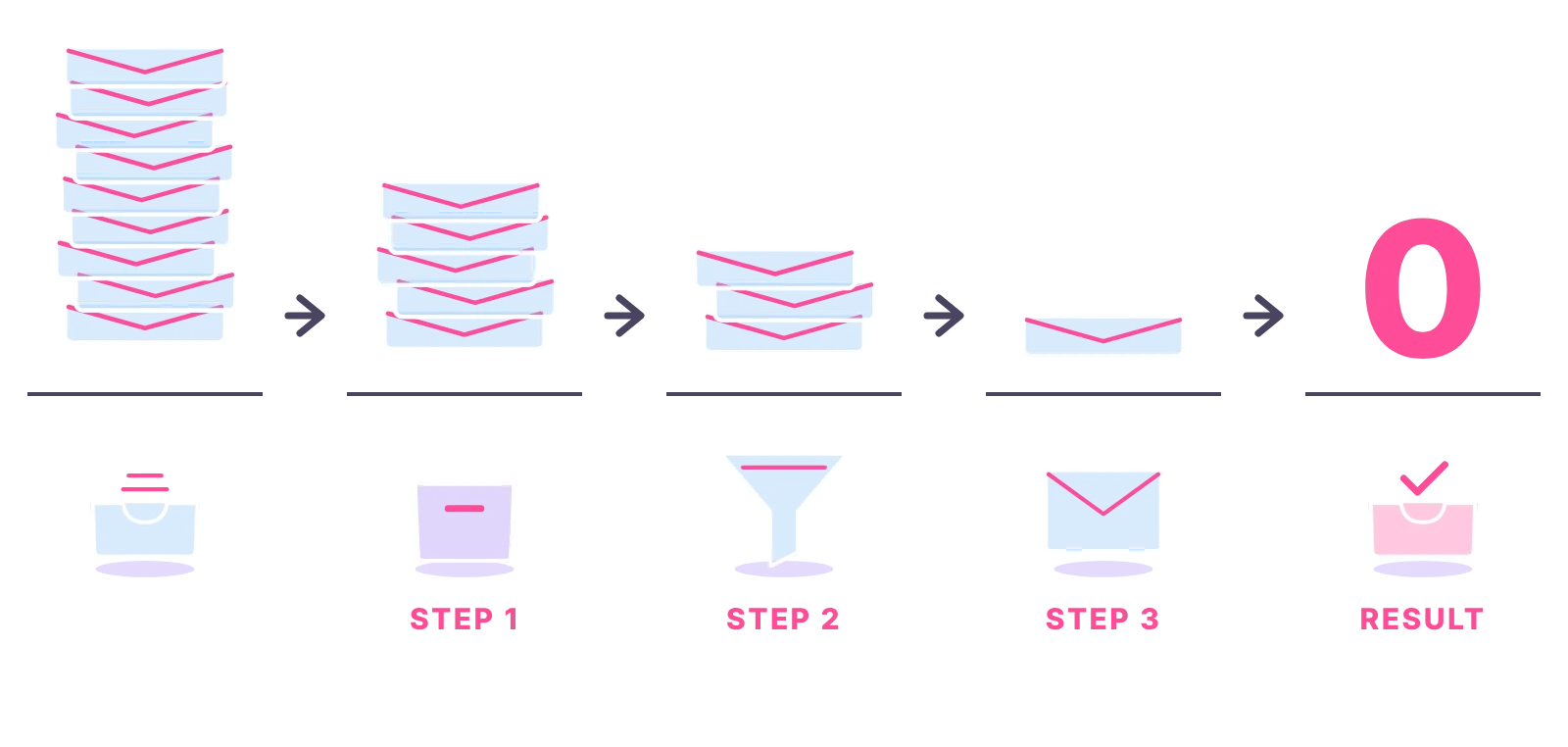
1. Assess and clear the backlog
Do not try to process thousands of old messages one by one. Pick a cut-off, such as anything older than a month, select everything older than that and archive it in one go. It is still searchable if you need it. Then work through what is left, newest first, using the four decisions below.
2. Unsubscribe and set filters
Before you process new mail, cut the volume. Unsubscribe from newsletters you no longer read. Then set filters or rules for mail you need to keep but do not need to see in your inbox, such as receipts, notifications and reports, so it goes straight to a folder or label.
3. Process each email once: delete, delegate, defer, do
Open each email once and make one of four decisions:
- Delete or archive anything that needs no action.
- Delegate anything someone else should handle, by forwarding it with a clear request.
- Defer anything that needs more than a couple of minutes, by moving it to a "to do" folder or label, or adding it to your task list with a date.
- Do anything that takes a couple of minutes or less, straight away.
Then archive the message. The inbox gets smaller with every decision.
Applying it in Gmail
According to Gmail Help on filters, Gmail filters can send incoming email to a label, or archive, delete, star or automatically forward it. That is the core of inbox zero in Gmail: filter the noise to labels that skip the inbox, then use Archive (not Delete) for anything you have finished with, so the inbox empties but the message stays searchable. Gmail's own help on labels explains how to create and manage them; a few broad labels, such as "To do", "Waiting" and "Receipts", work better than dozens of narrow ones.
Applying it in Outlook
Microsoft Support's Master your Outlook inbox page describes three features that fit the method: focusing your inbox so the messages that matter are separated from the rest, filtering low-priority email, and setting up rules to reduce repetitive actions. Use rules for the notifications and reports, the focused view for daily processing, and archive rather than delete once a message is done. The exact menu names vary between Outlook versions, so follow Microsoft's page for yours.
A weekly routine to stay at zero
Batched checks
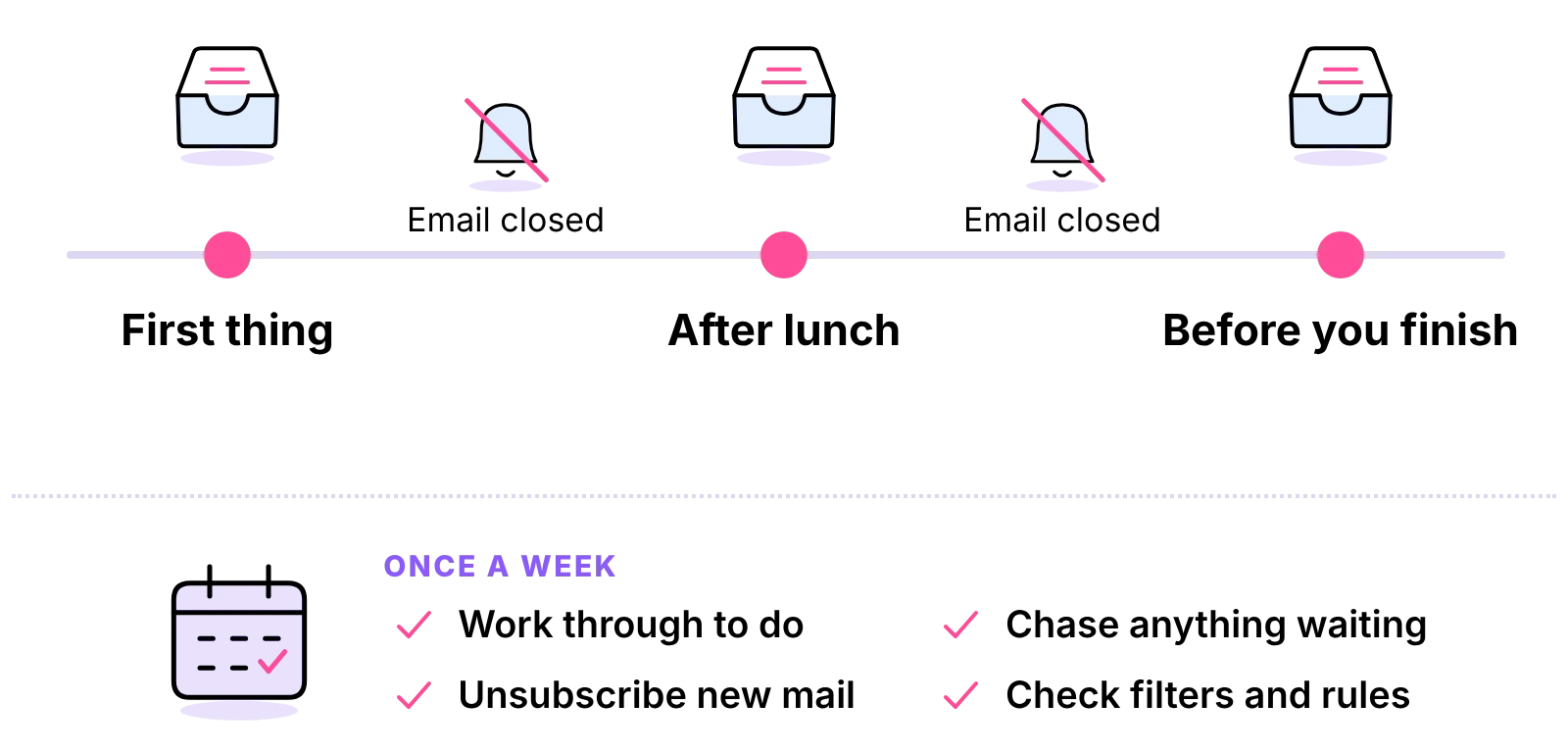
Pick set times to process email, such as first thing, after lunch and before you finish, and close the email tab in between. Turn off pop-up notifications. Each session runs the same four decisions until the inbox is clear. Our email management tips cover checking times, notifications and the two-minute rule in more depth.
Weekly review
Once a week, spend a short block on the folders the inbox feeds:
- Work through your "to do" folder and either do, reschedule or drop each item.
- Chase anything in "Waiting" that has gone quiet.
- Unsubscribe from anything new that crept in.
- Check your filters and rules are still sending mail to the right places.
The weekly review is what makes inbox zero last. Without it, the deferred folder becomes a second inbox. If you hand the review over, see virtual assistant vs personal assistant for who does what.
The 3-21-0 rule
We could not find an authoritative definition of the 3-21-0 email rule, and the descriptions in circulation do not agree. Before you adopt it, ask whoever recommended it what each number stands for in their version. The principle behind most named email rules is the one this guide already sets out: check at set times, decide on each message once, and end each session with nothing undecided.
Email tools and apps
Gmail and Outlook built-in features
For most small businesses the built-in tools are enough: filters and labels in Gmail; rules, filtering and the focused view in Outlook; search, so you can archive without fear; and snooze or reminder features where your version has them. Learn these before you add anything else.
Third-party apps
There are many apps that sit on top of Gmail or Outlook and promise to sort, snooze or summarise your mail. Some help, and all of them need access to your inbox. Before you connect one, check what access it asks for, who runs it and how it handles your data, and remember that an app sorts mail but cannot decide what your business should do about it. If you are unsure who to ask, read virtual secretary vs virtual assistant.
Handing the inbox to a virtual assistant
What the assistant handles
When the volume is too much for one person, the answer is a second person running the method for you. With inbox management support, a virtual assistant triages your inbox to your rules: deleting and filing, replying to routine messages, drafting replies for you to approve, chasing what is waiting and flagging only what needs you. You get an inbox that holds your decisions and nothing else. Our answer on whether a VA can manage your inbox sets out how it works in practice, and our list of admin tasks to delegate shows what else can go with it.

At Ant Assist your VA is dedicated to you, never shared, and works full time from our own managed office in Cairo, recruited, managed and supervised there and UK-managed, during UK business hours, 9am to 5pm Monday to Friday. You can start with 20 hours a week and go up to a full 40-hour VA. Pricing starts at the £5 per hour introductory rate, and the calculator shows the cost for your hours. For the wider range of tasks, read what does a virtual assistant do? task examples.
Access, confidentiality and getting started
We work under NDAs and data-processing agreements, share access through password managers and keep every login revocable by you. If you want to hire on your own, our guide on how to hire a VA for admin covers the route. For ongoing cover, see virtual admin assistant support.



Questions about an empty inbox
Didn't find your answer? Browse more common questions in the Help Center.
An inbox that holds only decisions.
A dedicated inbox VA, from £5 per hour. Book a call.