
Email management tips for business owners
Check email at set times, let filters file routine mail and decide on each message once. For owners, handing daily triage to someone you trust often helps most.
Tools our VAs use for this


The email management tips that make the biggest difference are simple: check email at set times instead of all day, let filters and rules file the routine mail before you see it, and decide on each message once using the two-minute rule and the four Ds (delete, delegate, defer, do). Unsubscribe ruthlessly, turn off notifications and archive rather than delete. For a business owner, the last of these email management tips is often the most useful: hand the day-to-day triage to someone you trust. An admin virtual assistant can take that triage on.
On this page
Checking email at set times
Batching replies
Choose two to four fixed times a day to process email, such as first thing, late morning, mid-afternoon and before you finish. Put them in your diary. In each session, work through everything that has arrived, then close the email tab. Between sessions, you are doing the work the emails are about. Booking those sessions into the calendar is easier with diary management virtual assistant help.
If customers expect fast replies, tell them when they will hear from you, set an auto-reply or a line in your signature with your response times, and give them a phone number for anything truly urgent.
Reactive versus proactive checking
Reactive checking means opening email every time it pings, which lets other people decide what you work on next. Proactive checking means you decide when to look, and you look with a purpose: to process. A simple test is whether you could say, before opening your inbox, what you are about to do in it.
Folders, labels, filters and rules
A simple folder structure
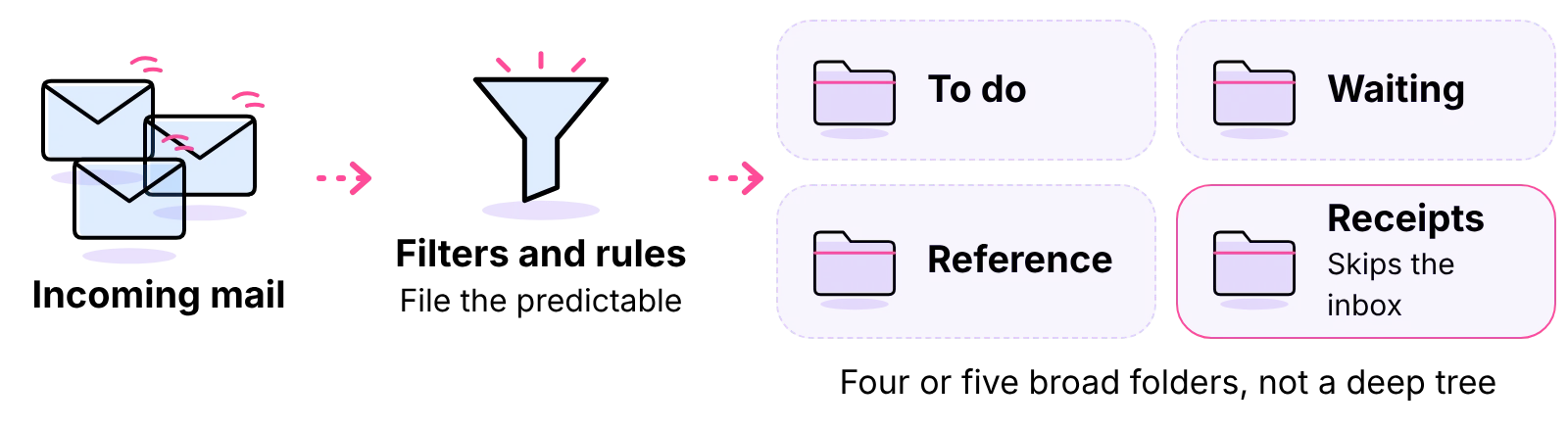
A small set of broad folders or labels works better than a deep tree. Many owners manage with four or five: "To do", "Waiting", "Reference", "Receipts" and one per major client or project if needed. If you cannot decide in a second where something goes, you have too many.
Archiving versus deleting
Archive by default. Archived mail leaves the inbox but stays searchable, so nothing you might need later is lost. Delete obvious junk and marketing you will never read. For business records such as invoices and contracts, follow your own retention rules rather than deleting by instinct.
Filters in Gmail
Gmail Help on creating filters explains that filters can send incoming email to a label, or archive, delete, star or automatically forward it. Use them for anything predictable: receipts to a "Receipts" label that skips the inbox, newsletters to a "Read later" label, system notifications archived on arrival. Gmail's help on labels says you can create up to 5,000 labels, at the time of writing; you will need far fewer. To build a filter, the quickest route is to search for the kind of message you want to catch, check the results are right, then create the filter from that search.
Rules in Outlook
Microsoft Support's Master your Outlook inbox page describes focusing your inbox, filtering low-priority email and setting up rules to reduce repetitive actions. Rules do the same job as Gmail filters: move a sender or subject to a folder, flag messages from key clients, or file notifications automatically. Menu names differ between Outlook versions, so follow Microsoft's help for your version when you create one, and test each new rule on a few messages before relying on it.
The two-minute rule and the 4D method
The two-minute rule
If an email will take two minutes or less to deal with, deal with it now. Reply, forward, file, done. Anything longer gets deferred to a time when you can give it proper attention. The rule stops small tasks piling up and stops you re-reading the same message five times.
Delete, delegate, defer, do
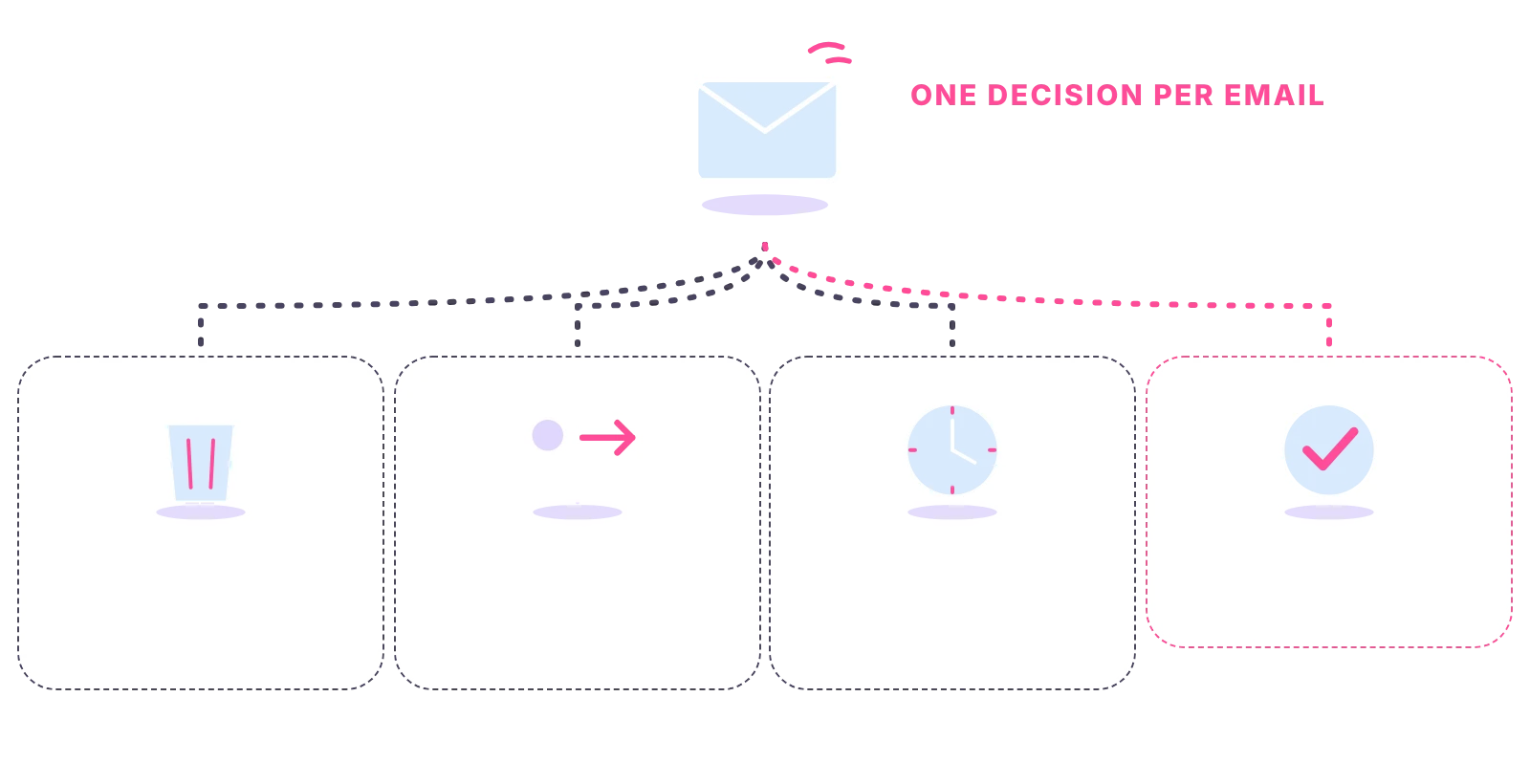
Every email gets one of four decisions:
- Delete (or archive) if it needs no action.
- Delegate if someone else should handle it: forward it with a clear request and, if you need to follow up, move your copy to "Waiting".
- Defer if it needs more than two minutes: move it to "To do" or put it on your task list with a date.
- Do if it takes two minutes or less.
Some versions add a fifth D, but the four above cover every email you will receive.
Inbox zero
Inbox zero is what you get when you apply the four decisions to everything and leave nothing undecided in the inbox. It is a full method with its own steps and routine, which our guide to inbox zero sets out.
Five-minute changes
Unsubscribing
Spend five minutes searching your inbox for the word "unsubscribe" and leaving every list you no longer read. Do it again each month. Every newsletter you leave is one fewer message to process, every week, for good. If a sender ignores your unsubscribe request, set a filter or rule to archive or delete their mail on arrival.
Turning off notifications
Turn off email notifications on your phone and desktop, or limit them to a short list of key people if your app allows it. Notifications are what turn set checking times back into checking all day.
Saving repeat replies
If you type the same answer several times a week, such as directions, prices from your own price list or how to book, save it once and reuse it. Gmail and Outlook both let you store reusable text; check your version's help for where the feature sits. Keep each saved reply short, review the set every few months and personalise the first line before you send.
Writing shorter emails
Short emails get short, fast replies. Put the request or decision in the first line, use the subject line to say what the email is about, and send one email per topic so it can be filed and found.
Well-known email rules
Well-known email rules with a number in the name include the 5 Cs, the 3 email rule, the 5 email rule and the 5 Ds. None of them has an official definition, and versions differ from one writer to the next, so treat them as handy reminders rather than standards.
The 5 Cs
The 5 Cs are usually a checklist for writing an email rather than managing an inbox. A common version asks whether your email is clear, concise, correct, courteous and complete. Some versions swap in other words, such as considerate or confident, but the point is the same: read it once before you send it.
The 3 and 5 email rules
The "3 email rule" is commonly used to mean that if a thread has gone back and forth about three times without being resolved, stop emailing and pick up the phone or book a short call. The "5 email rule" is used in different ways; one common meaning is to keep replies to around five sentences. Ask whoever recommended a rule what they mean by it, and keep the ones that save you time.
The 5 Ds
The five Ds of email management are an extended version of the four Ds above. The fifth D differs between versions, so if a colleague uses the term, check which version they mean. The four decisions in this guide are the core of all of them.
Shared and delegated email
Shared inboxes
Use shared addresses such as accounts@ or hello@ for work that belongs to a role, such as accounts or enquiries. That way the messages survive holidays and staff changes. Agree who owns the shared inbox each day, how people show that an email is in hand (a label, a folder or a reply), and how fast each type of message should be answered. Write the agreement down where everyone can see it. Without ownership, everyone assumes someone else has replied, and the customer waits.

Delegated access in Gmail and Outlook
Delegation lets someone read, send and manage email on your behalf without having your password. Gmail Help on delegating your email says, at the time of writing, that a personal @gmail.com account can add up to 10 delegates and a work or school account up to 1,000. Outlook and Microsoft 365 have their own delegate and shared-mailbox options; check Microsoft's help pages for the steps in your version, as they differ. Delegate access can be removed at any time, which makes it safer than sharing a password.
Delegating email to a virtual assistant
Triage, replies and filing
When the tips are working and you still face email overload, the next step is a person. An email management VA can triage your inbox at set times, file and label to your structure, answer routine messages from templates you agree, draft replies for you to approve, chase anything waiting on someone else and send you a short summary of what needs you. Our answer on whether a VA can manage your inbox covers how this works, and admin tasks to delegate lists what else can go with it. For the wider range of work a VA covers, see what a virtual assistant does.
Example: a day of delegated email. In the morning, your VA clears overnight mail: receipts filed, newsletters archived, routine enquiries answered from your templates. Anything that needs you goes into a short summary with a suggested reply. At midday they chase anything sitting in "Waiting". Before you finish, they send a note of what was handled and what is still open, so you start tomorrow knowing exactly where the inbox stands. For a smaller firm, our virtual assistant for small business guide shows where such help fits.
Management and oversight
At Ant Assist your VA is dedicated to you, never shared, and works full time from our own managed office in Cairo, recruited, managed and supervised there and UK-managed. They work UK business hours, 9am to 5pm Monday to Friday, from 20 hours a week up to a full 40-hour VA. Pricing starts at the £5 per hour introductory rate; the calculator shows the cost for your hours. If the fit is wrong, we replace the VA without restart cost. That is how our admin support from a dedicated VA works.
Access and confidentiality
Your VA works through delegate access or a password manager, never a shared password in an email, and every login stays revocable by you. We work under NDAs and data-processing agreements. You decide what the VA can send without asking and what always comes to you.



Questions about managing email
Didn't find your answer? Browse more common questions in the Help Center.
Take email off your plate.
A dedicated inbox VA, from £5 per hour. Book a call.