
How to import products into Shopify with a CSV template
Use Shopify's sample CSV template with one row per product, extra rows for variants or images, and UTF-8 encoding. A test import of a few products prevents most trouble.
Tools our VAs use for this


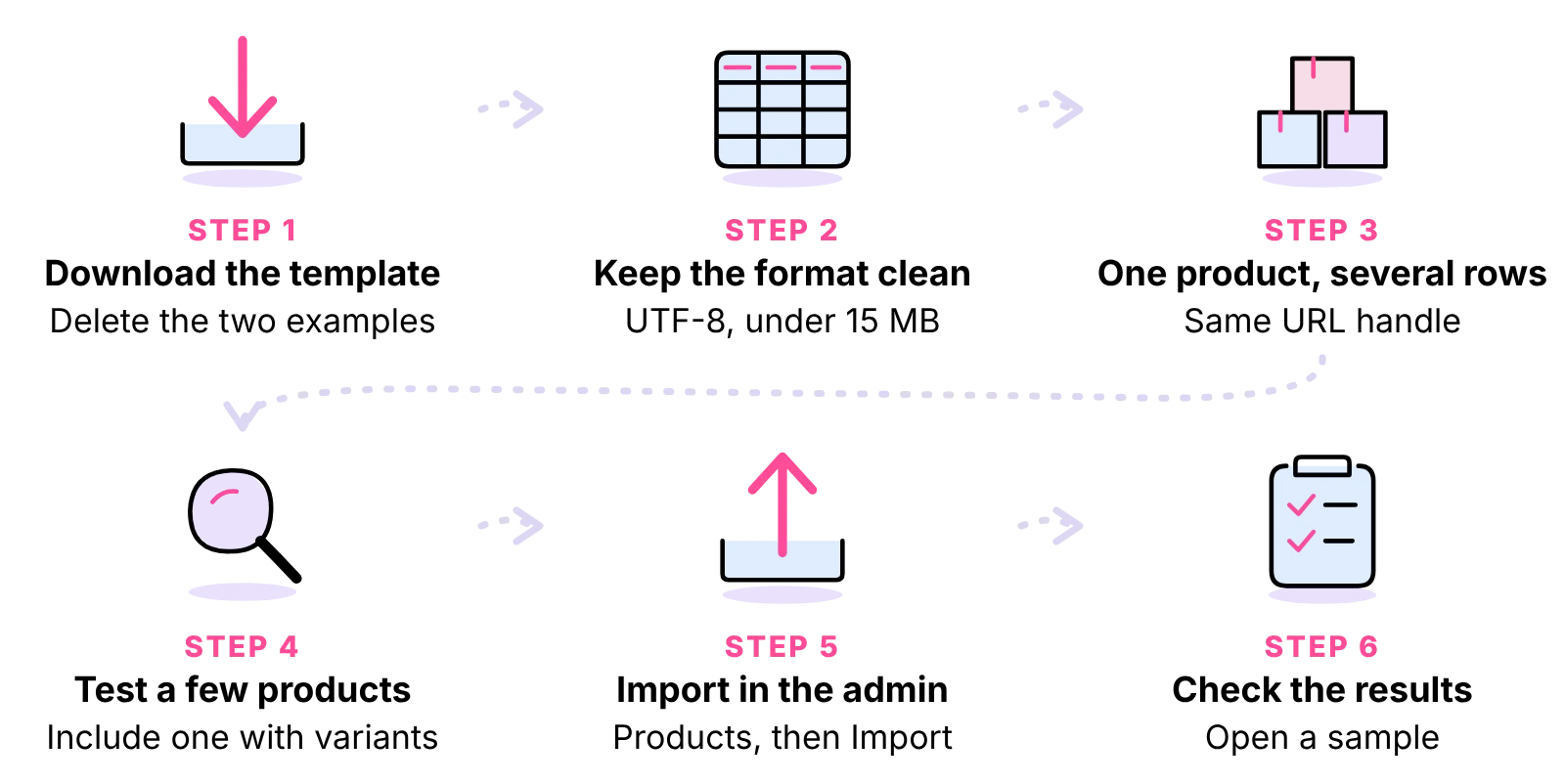
Download Shopify's sample product CSV, delete its two example products, and fill in one row per product, or several rows for a product with variants or extra images, keeping the column headers as the first line. Save it as a UTF-8 CSV under 15 MB, then import it from the Products page in your Shopify admin and check the results. A good file and a test run with a few products first save most of the trouble. If you would rather hand the job over, a Shopify virtual assistant can do it for you.
On this page
What a Shopify product CSV is
Imports, exports and CSV files
A CSV (comma-separated values) file is a plain spreadsheet saved as text, with commas between the values. Shopify uses it to bring products in (import) and to take them out (export), so the same format works in both directions. You can edit it in any spreadsheet program. If the upload is a recurring chore, an ecommerce VA can take it over.
CSV versus adding products by hand
Use a CSV when you add many products at once, move a range from another platform, or change the same detail across many products, such as prices or tags. For a handful of products, the admin is quicker. For a regular feed from a supplier, an app that imports automatically may suit better than re-uploading a file each time. Bulk changes are one of the routine jobs in our guide to Shopify store management.
The CSV template and its columns
Step 1: Download the template
Shopify's help pages offer a sample product CSV to start from. According to the Shopify Help Center, the sample file holds two example products; delete them before you add your own (Using CSV files to import and export products, opened 19 October 2026). Keep the header row exactly as it is. If you already have products in Shopify, an export of your current products is an even better template, because it shows your own data in the right layout.
The required columns
The Shopify Help Center says that for new products the only required column is Title. When you add variants, the URL handle column is required as well, because it is what ties the variant rows to their product. A URL handle may contain letters, dashes and numbers, with no spaces.
Every other column is optional on a new product. Leave a column in the file even when you do not use it, and fill in only what you need. Shopify's help page lists every column, what it holds and its rules; read it alongside your file, because the column list can change.
| Column | What it holds |
|---|---|
| Title | The product name that you want to display to your customers. |
| URL handle | The unique identifier for each product, used in the URL of the product page. |
| Description | The description of the product. |
| Vendor | The name of the origin or source of the products that you sell. |
| Product category | A label that describes the type of product. |
| Type | A label that describes the product if you need a custom category. |
| Tags | Keywords to help customers find your product, or to group and filter products. |
| Published on online store | Whether the product should be published on your online store sales channel. |
| Status | Whether the product is available to your customers. If this column is present, then it needs a value. |
| SKU | The Stock Keeping Unit (SKU) of a variant, used to track inventory. |
| Barcodes | All of the barcodes for the product or variant. |
| Option1 name | The name of an option, such as size or colour, for a product that has more than one option. |
| Option1 value | The value of that option. |
| Option1 LinkedTo | Used if a product option is connected to a category metafield. |
| Price | The price of the product or variant, without a currency symbol. |
| Price / International | A fixed price for that product in the market of the same name. |
| Compare-at price | The original price of the variant if the price has been reduced. |
| Compare-at price / International | A fixed compare-at price for that product in the market of the same name. |
| Cost per item | How much it costs you to make or acquire the product or variant. |
| Charge tax | Whether the product is taxable. |
| Inventory tracker | Which service you want to use to track the variant inventory. |
| Inventory quantity | The number of items you have in stock. This applies only to stores that have a single location. |
| Continue selling when out of stock | Whether you want to let customers buy out of stock items. |
| Weight value (grams) | The weight of the product or variant in grams, without the unit or decimals. |
| Weight unit for display | The unit in which you want the product weight to be displayed on your store. |
| Packed product length | The length of the variant after it's packed. Fill in all four packed product columns, or leave all four blank. |
| Packed product width | The width of the variant after it's packed. |
| Packed product height | The height of the variant after it's packed. |
| Packed product dimension unit | The unit of measurement for the packed product length, width, and height. |
| Requires shipping | Whether the product is a physical product that must be shipped. |
| Fulfillment service | The fulfillment service that you use for a product or variant. |
| Included / [Primary] | Whether the product is included for sale in your primary market. |
| Included / International | Whether the product can be sold in your international market(s). |
| Product image URL | The URL for the product image. |
| Image position | The number that represents the order in which you want the image to display. |
| Image alt text | Alternative (alt) text that describes the image. |
| Variant image URL | The URL for the variant images. |
| Gift card | Whether the product is a gift card. |
| SEO title | The product name that is displayed in search engine results. |
| SEO description | The description shown in the search engine listing preview. |
| Google Shopping / Google Product Category | A Google product category, if you use one. |
| Google Shopping (Unstructured metafield) | Google Shopping metafields; the column headers vary with the metafield. |
| Metafields | Product metafields created on your store. |
Inventory quantity and single-location stores
The Inventory quantity column in the product CSV works only for stores with a single location. If you hold stock in more than one location, the Shopify Help Center says to update stock with the separate inventory CSV instead. If stock is a daily job for you, see our inventory management service.
Preparing the file
Step 2: Keep the format clean
- The first line must be the column headers, and values are separated by commas.
- Save the file with UTF-8 encoding. According to the Shopify Help Center, Google Sheets saves CSV files as UTF-8 by default; other spreadsheet programs may need an extra step when you save (Importing products with a CSV file, opened 19 October 2026).
- Use straight quotation marks, not curly ones. Curly quotes, often pasted in from a word processor, can stop an import.
- Keep the file under 15 MB. If it is bigger, split it into smaller files.

Step 3: One product, several rows
A simple product with no variants and one image takes one row. A product with variants, such as sizes or colours, takes one row per variant, and every row for that product repeats the same URL handle. Extra images follow the same idea: they belong to the product through its URL handle. Shopify's help page sets out which columns go on the product's first row and which on the variant and image rows; follow it exactly.
The Shopify Help Center says you can add up to 250 images to a product and a maximum of 250 tags to each product.
Do not sort the file
Do not sort the rows in a spreadsheet program once the file is built. The Shopify Help Center warns that sorting in Excel or Numbers can separate products from their image links. If you need to reorder, do it before you add the image rows, or rebuild from an export.
An example file, row by row
This is an example only, to show the layout. Say you sell a cotton T-shirt in three sizes with two photos.
- Row 1 (header row): the column headers, exactly as in the template.
- Row 2: the URL handle (for example, cotton-t-shirt), the Title, the description and the other product details, with the first size, its price and the first image.
- Row 3: the same URL handle, with the second size and its price.
- Row 4: the same URL handle, with the third size and its price.
- Second image: linked to the same URL handle, placed as Shopify's help page describes.
Check the layout against Shopify's sample file and help page before you build your own, then copy the pattern for every product.
Uploading and importing the file
Step 4: Test with a few products first
Before you import your whole range, make a copy of the file with only two or three products, including one with variants. Import it and check the results in the admin. It is much quicker to fix a pattern on three products than on three hundred.
Step 5: Import in the admin
- In your Shopify admin, go to Products.
- Click Import.
- Click Add file, and then select your CSV file.
- To replace products that already exist, select Overwrite products with matching handles (see the next section). To publish new products only to your online store, deselect Publish new products to all sales channels.
- Click Upload and continue, review the details about the import, and then click Import products. Shopify sends a confirmation email after the file is uploaded.
Shopify's help page on importing products shows the current screens; check it if the buttons in your admin look different.
Step 6: Check the import results
When the import finishes, open a sample of the new products, including at least one with variants, and check the title, description, price, variants, images and stock. Then work through the checklist after the import below.
Overwriting existing products
Matching handles
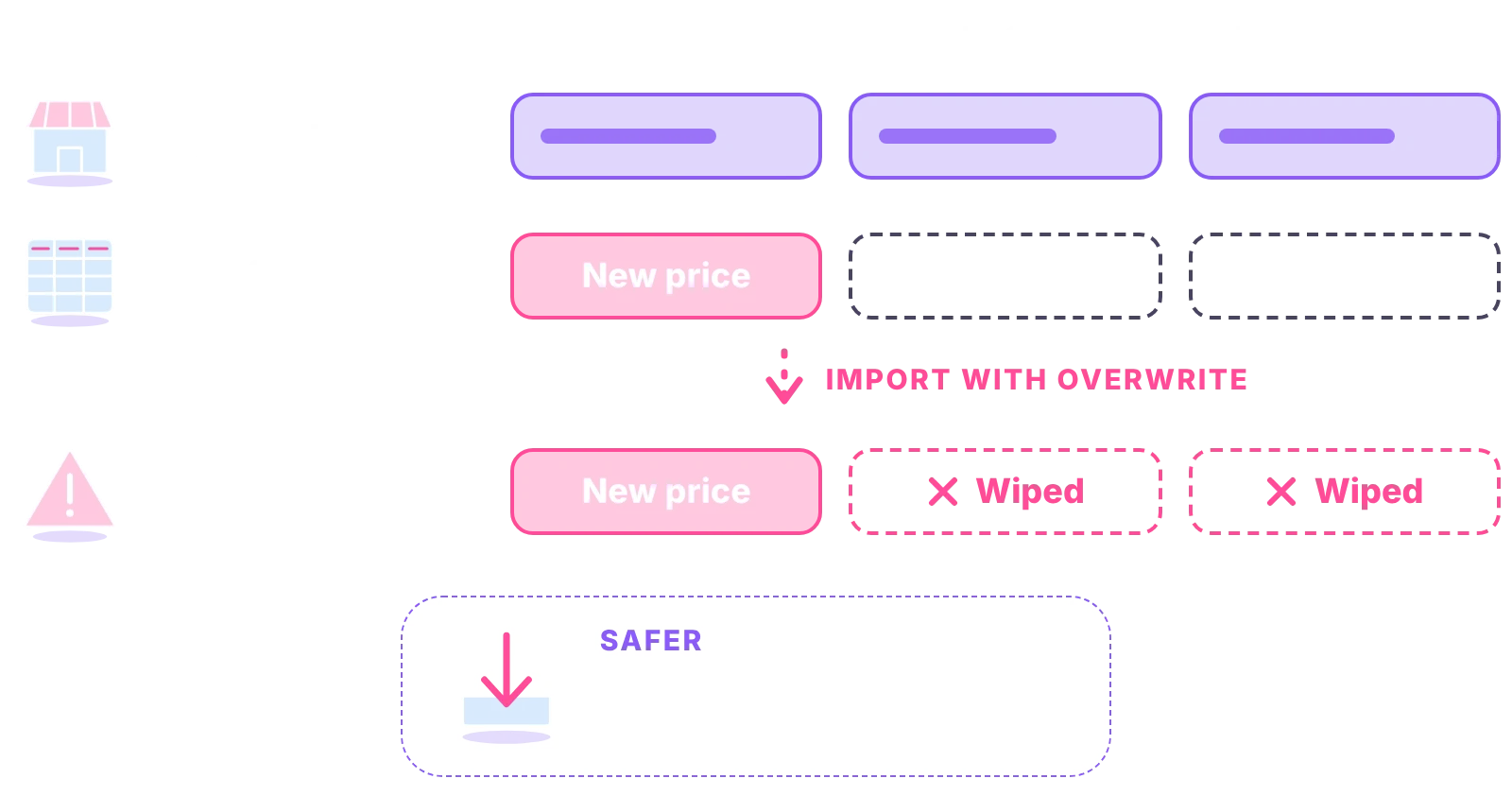
When you choose to overwrite existing products, Shopify matches rows in your file to products in your store by URL handle. Where the handle matches, the values in your file replace the values in the store.
Blank cells overwrite values
This is the trap. The Shopify Help Center says that when you overwrite, a blank cell in a column that is not required overwrites the existing value as blank. If you only want to change prices, start from an export of your current products, change the prices, and upload that file, so every other cell still holds its current value.
Keep a backup
Before any overwrite, export your current products and save the file. If the import goes wrong, you can import the backup to put things back.
Common import errors and fixes
Encoding and quotation marks
If Shopify rejects the file or shows strange characters, save it again as UTF-8 and replace any curly quotes with straight ones. Open the file in a plain text editor to see what is really in it.
File too large
If the upload fails or times out, check the size. The product CSV cannot exceed 15 MB; split it into smaller files and import them one after another.
Variants on the wrong product, or missing images
Check that every row for a product carries exactly the same URL handle, with no spaces and no stray capital letters or characters. If images have moved to the wrong product, the file may have been sorted; rebuild those rows from your source data. Check that each image link opens in a browser.
Importing from other stores and suppliers
From another Shopify store
Export the products from the first store as a CSV, check the file, and import it into the second. Both use the same format, so this is the simplest move. Check images, stock and any details that do not carry over before you go live.
From AliExpress, Amazon, Alibaba or CJ Dropshipping
There are two routes. If the supplier or marketplace lets you export a product file, you can copy its data into Shopify's template, column by column, then import it. Or you can use an import app from the Shopify App Store, which connects to the supplier and brings products in for you. Either way, rewrite the descriptions in your own words (our guide on how to write product descriptions covers this), check the images are yours to use, and set your own prices. To send the same data to Google Shopping or other channels, see product feed management. If you also sell on eBay, the same bulk approach is covered in our guide to eBay bulk listing.
Customers, inventory and orders
The product CSV holds products only. Stock for multi-location stores goes through the separate inventory CSV. For customers, orders and other data, check the Shopify Help Center for the matching import or export before you build a file.
Post-import checklist
- [ ] Product count in the admin matches the number of products in your file
- [ ] Every product has its images, in the right order
- [ ] Every variant is on the right product, with the right price
- [ ] Stock levels are right, or set through the inventory CSV
- [ ] Titles and descriptions show without strange characters
- [ ] Tags and collections are as expected
- [ ] Products are visible on the store, or hidden if you meant them to be
- [ ] A copy of the file you imported is saved with the date

How long an import takes
Shopify does not publish a time for imports, and it depends on the size of the file and the number of images. Allow time to check the results, and avoid importing just before a sale or a busy period.
Outsourcing product uploads to a virtual assistant
A Shopify VA from Ant Assist builds the file, runs the test import, checks the results and keeps your catalogue up to date afterwards, working in your store under their own staff account. Each VA is one named person, dedicated to you and never shared, working full time from our own managed office in Cairo, recruited, managed and supervised there, with a UK team overseeing quality. They are not freelancers and they are not AI. Uploads are one job among many, and a dedicated e-commerce assistant can look after the others too.
You choose from 20 hours a week up to a full 40-hour VA, on UK business hours, 9am to 5pm Monday to Friday. Access runs through NDAs and data-processing agreements, password managers and staff accounts you can revoke at any time. For listings across every channel, see product listing and catalogue management.
The rate starts at £5 per hour on the introductory rate for the first 6 months on the Entry tier (3 months on Mid, 1 month on Expert). After that, Entry is £6.50 per hour full time (£1,040 a month for 160 hours) or £6.80 per hour part time (£544 a month for 80 hours). Put your own hours into the calculator to compare.



Shopify import FAQs
Didn't find your answer? Browse more common questions in the Help Center.
Your whole range, uploaded and checked.
One dedicated Shopify VA, from £5 per hour. Book a call.